|

Project Overview
Designing the workspace behind an interactive simulation.
Stukent simulations combine content and interactive activities across multiple rounds. However, creating one required the same experience to be repeatedly translated across content documents, Figma storyboards, configured previews, and review files. Each handoff added time and increased the risk of losing context or changing the original intent.
Problem:
One simulation moved across several artifacts and contributors. Every handoff required interpretation, added wait time, and made updates easier to miss—leading to misalignment, miscommunication, and delays throughout the process.
Goal:
Bring the work into one place, so the team could build and review the actual simulation together while keeping versions, editing access, and external sharing under control.
My role:
I led product strategy and UX, defined the system and interaction rules, interviewed cross-functional partners, and built the working application with Claude Code.
Tools:
Functional internal product: shared authoring/editing, approximately 60 reusable activity types, AI-assisted setup, snapshots, Ready states, and protected reviewer links.
The Workflow Challenge
The real problem was not speed. It was the structure of the work.
A finished simulation passed through multiple people, tools, and representations before anyone could experience it as a learner would. Each handoff asked the next person to reconstruct intent from an incomplete artifact.
Content outline
The scenario and learning objectives begin in a Google doc.
Static storyboard
UX translates the outline into Figma screens and an intended flow.
Configured build
The same content is manually rebuilt in the backend.
Working preview
The team can finally test how the interaction actually behaves.
Review export
A separate artifact is prepared and sent outside the team
01 / INTENT
Authors couldn’t update the content from their end
Content started in documents, then UX designer had to turn it into screens, interactions, and configuration.
02 / FIDELITY
Static screens couldn’t show the full experience
Figma could show the layout, but not what happened after a student clicked, submitted an answer, or made a mistake.
03 / CHANGE
Small changes created more work
The same update often had to be made in multiple places, followed by another round of review.
04 / SCALE
More access required more control
If more people could edit directly, we also needed clear permissions, reusable patterns, version history, and approval states.
An entire simulation, visible in one shared workspace.
The board connects reusable activities on the left with the full sequence of rounds and tasks, while every card contains a working preview of the student experience.

01 · GENERATE
Turn an outline into a working first draft.
Authors can paste a Notion or Markdown outline. AI organizes it into rounds and tasks, then suggests activities from the library. The team reviews the draft before adding it to the storyboard.

Build with AI can add rounds to the current simulation or start a new storyboard.

A name, category, description, and preview image make each activity easy to find and reuse.
02 · Drag ready-to-use activities from the library directly into the storyboard.
Build each round with drag and drop.
Interactive HTML activities built in Claude Code can be added to the Activity Library. Once added, Once added, the team can reorder tasks, edit the content, and test the interaction directly in the storyboard.
03 · PRESERVE
Save a version
A snapshot saves the entire storyboard. The team can return to an earlier version or make a copy to try a new direction without changing the version already approved by the team.

Each snapshot keeps the storyboard structure and task content together.
04 · REVIEW
Review the experience — Replace static PDF
The same simulation becomes an interactive, read-only reviewer experience. Reviewers can navigate and use activities without accessing internal tools or other simulations.

Internal builder: activity library, statuses, editing, snapshots, and the complete simulation.
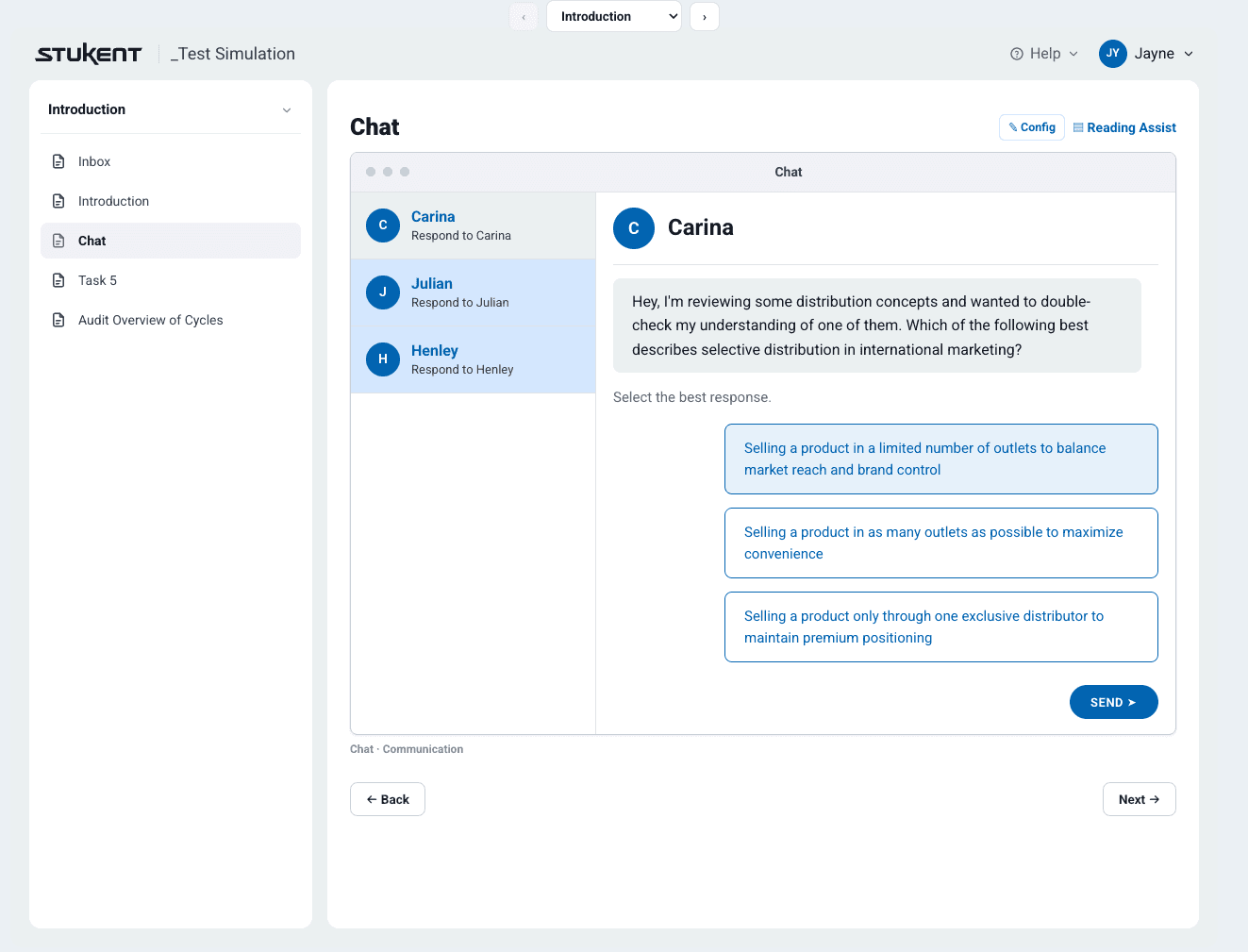
Reviewer view: simulation navigation and interactions without authoring access.
How I Used Claude to Build the Product
01 / PROVIDE CONTEXT
Share the existing workflow, user roles, product hierarchy, and UI references.
02 / DEFIND THE RULES
Explain how editing, task states, permissions, snapshots, and reviewer access should work.
03 / BUILD AND TEST
Implement one working flow at a time and test the actual behavior in the browser.
04 / CORRECT AND REUSE
Fix unclear behavior, document the pattern, and apply it across other activities.
Claude helped me build faster, but clear product decisions determined the quality of the result.


Outcome
The team could plan, edit, test, and review the simulation in one interactive storyboard instead of switching between documents, Figma, previews, and exported files.
Workflow Impact
Content Authors:
Students gained a more predictable learning experience through consistent navigation, clearer access status, and improved visibility into course activation and licensing workflows.
Internal Teams:
Product, UX, Configuration, and Engineering can review the same working experience earlier and catch issues sooner.
External Reviewers:
Reviewers can use a read-only link and experience the simulation like a learner without seeing internal tools or notes.
Takeways
Cross-Functional Collaboration:
Understanding how each team worked helped shape permissions, review states, snapshots, naming, and access.
What I learned:
AI worked best after the system was clearly defined. Once the structure, rules, and edge cases were clear, Claude Code could build a much more reliable experience.